
How to use Hubao Club — Parent and student tutorials
Parent tutorial
Set up your family on Hubao Club in 3 steps
Create your account, sign in, then choose a plan and pay. Watch the two-minute video, or follow the pictures below.
On-screen captions are in Chinese. The written steps below are in English.
Have these ready
- Your full name, phone number (starting with +60) and an email address you can open.
- A password of at least 8 characters.
- Your banking app, to scan the DuitNow QR and pay for the plan.
Step-by-step guide
- 01
Step 1
Create your parent account
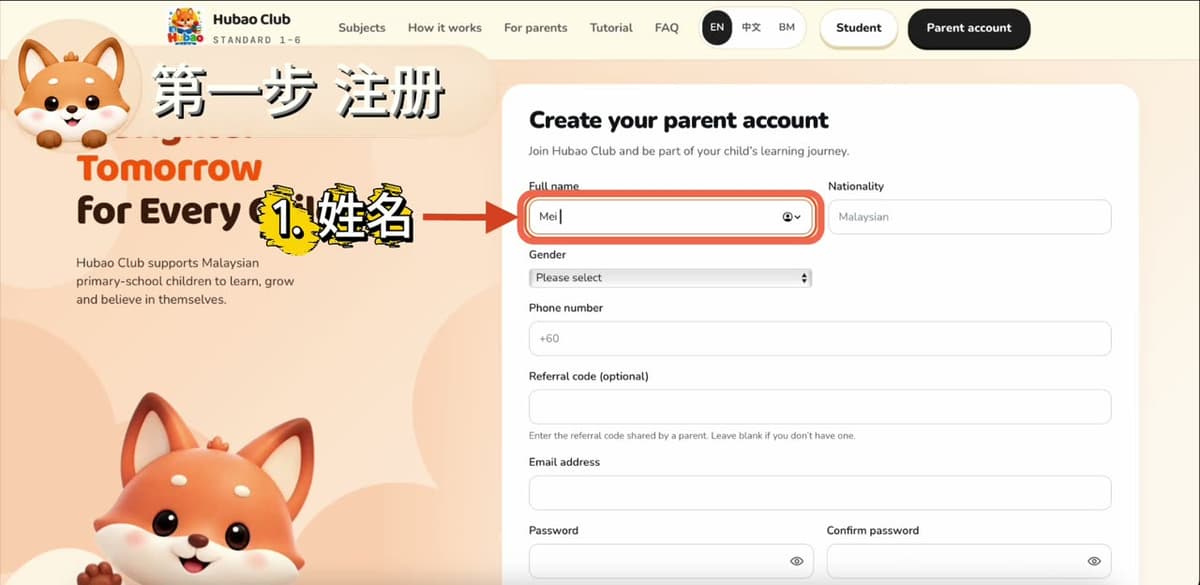
On hubaoclub.com, tap Parent account, then Create an account. Fill in the form from top to bottom.
- Full name and nationality
- Gender and phone number (start with +60)
- Referral code is optional. Leave it blank if you don’t have one.
- Email address
- 02
Step 2
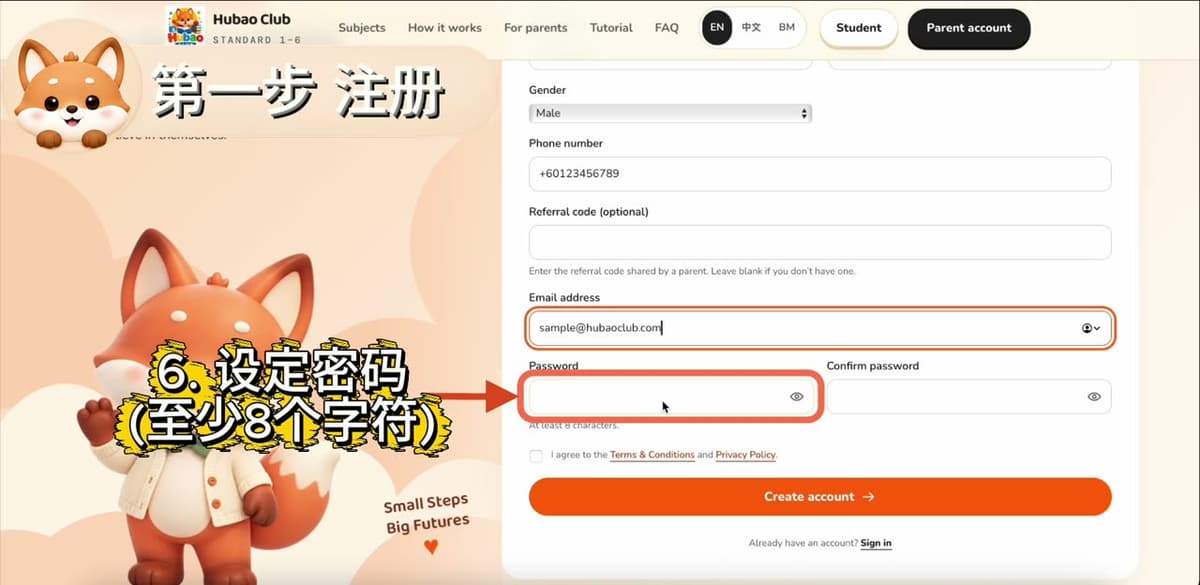
Set a password and agree to the terms
Choose a password of at least 8 characters and type it again to confirm. Tick the box to agree to the Terms & Conditions and Privacy Policy, then press Create account.
- 03
Step 3
Sign in
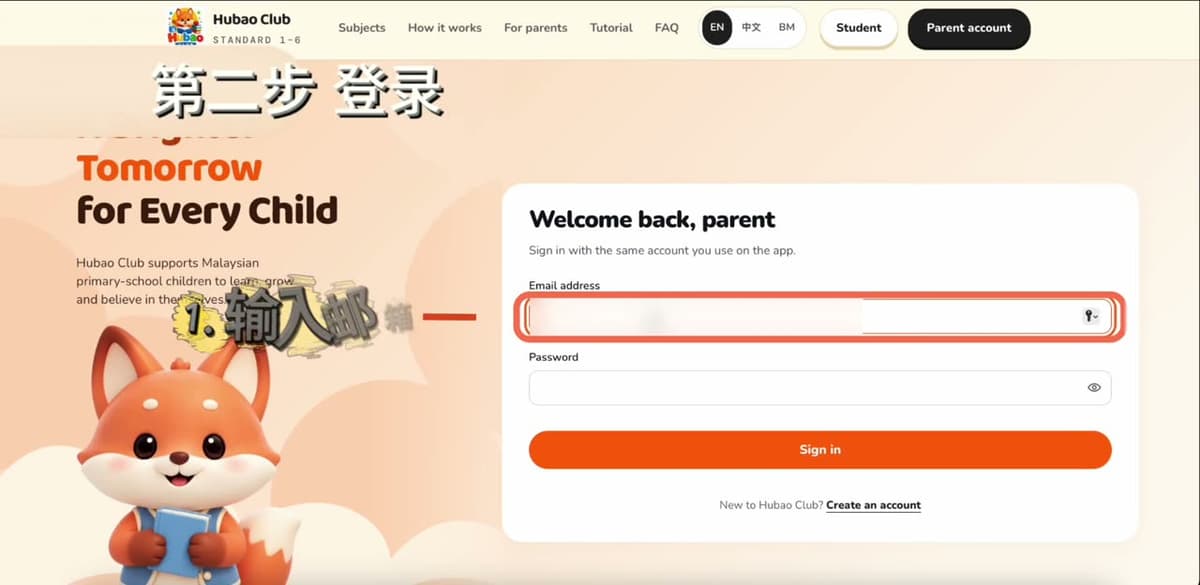
Go to Parent account and sign in with the email and password you just created. Use the same account on the app.
If your browser offers to save the password, you can choose Not Now.
- 04
Step 4
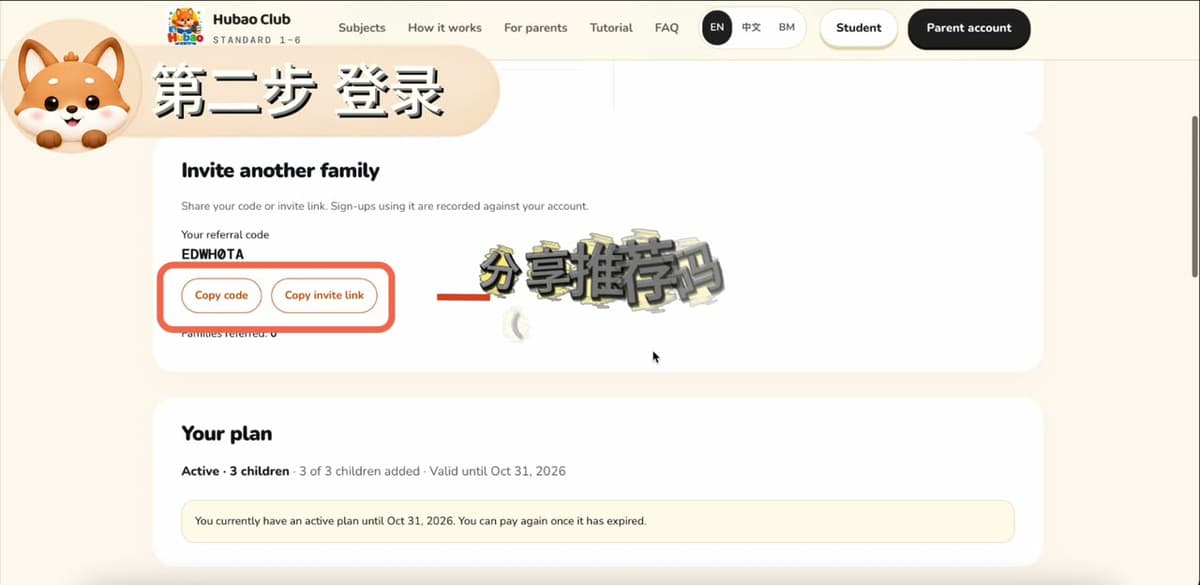
Share your referral code
Once you are signed in, your account page shows your own referral code. Tap Copy code or Copy invite link to share it with another family.
- Your plan and its end date are shown just below.
- 05
Step 5
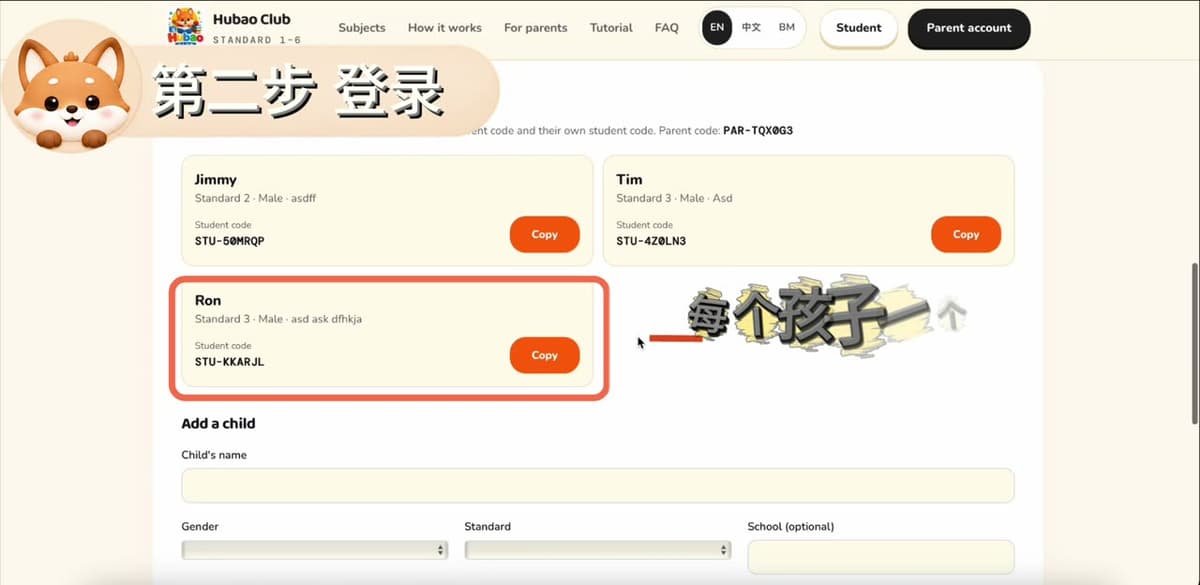
Find each child’s code
Every child gets their own Student code. Tap Copy next to a child to copy it, then give it to them together with your Parent code. Use Add a child to add the next one.
Your child signs in with two codes: your Parent code (PAR-) and their own Student code (STU-).
- 06
Step 6
Choose a plan and pay
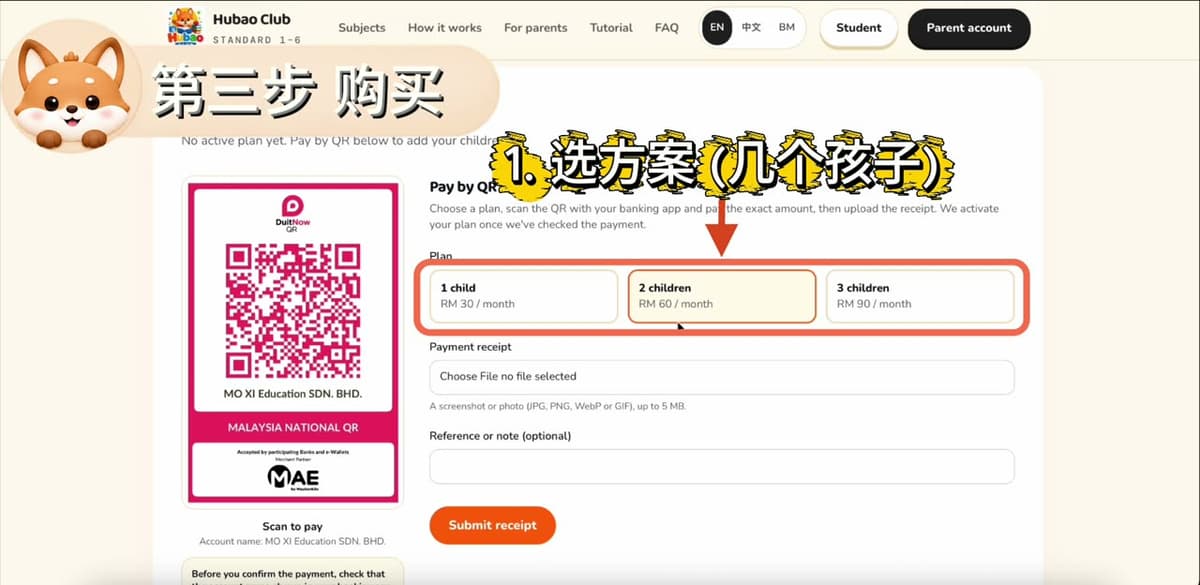
Pick the plan by the number of children, then scan the DuitNow QR with your banking app and pay the exact amount.
- 1 child: RM 30 / month
- 2 children: RM 60 / month
- 3 children: RM 90 / month
- Check that the account name in your banking app matches the one under the QR before you confirm.
- 07
Step 7
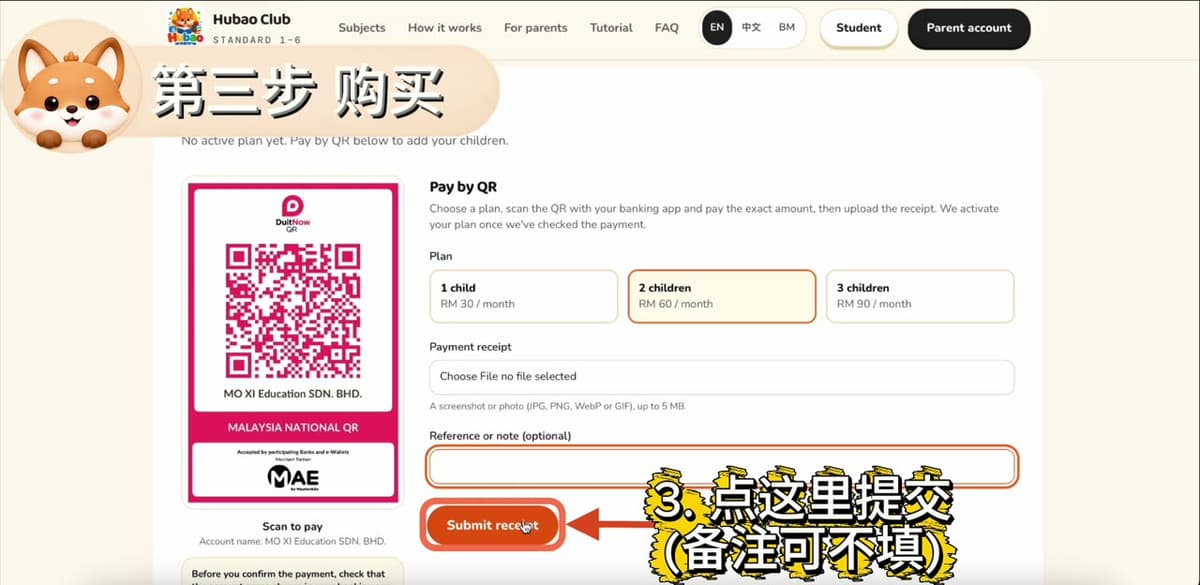
Upload your receipt
Choose your receipt (a screenshot or photo, up to 5 MB), add a reference or note if you like, then press Submit receipt. We activate your plan once we have checked the payment.
The reference or note is optional.
All set!
Your family is ready. Give each child their codes and let them start learning.
Open parent sign-inNeed a hand? Email [email protected]
Student tutorial
Learning on Hubao Club, step by step
A two-minute walkthrough for students and parents. Watch the video, or skip it and follow the pictures below.
On-screen captions are in Chinese. The written steps below are in English.
Before you start
- Your parent signs up and adds you to their account. They will get two codes for you.
- The Parent code looks like PAR-A3X9K2. The Student code looks like STU-B7M4P1.
- Open hubaoclub.com on a computer, tablet or phone. No download needed.
Step-by-step guide
- 01
Step 1
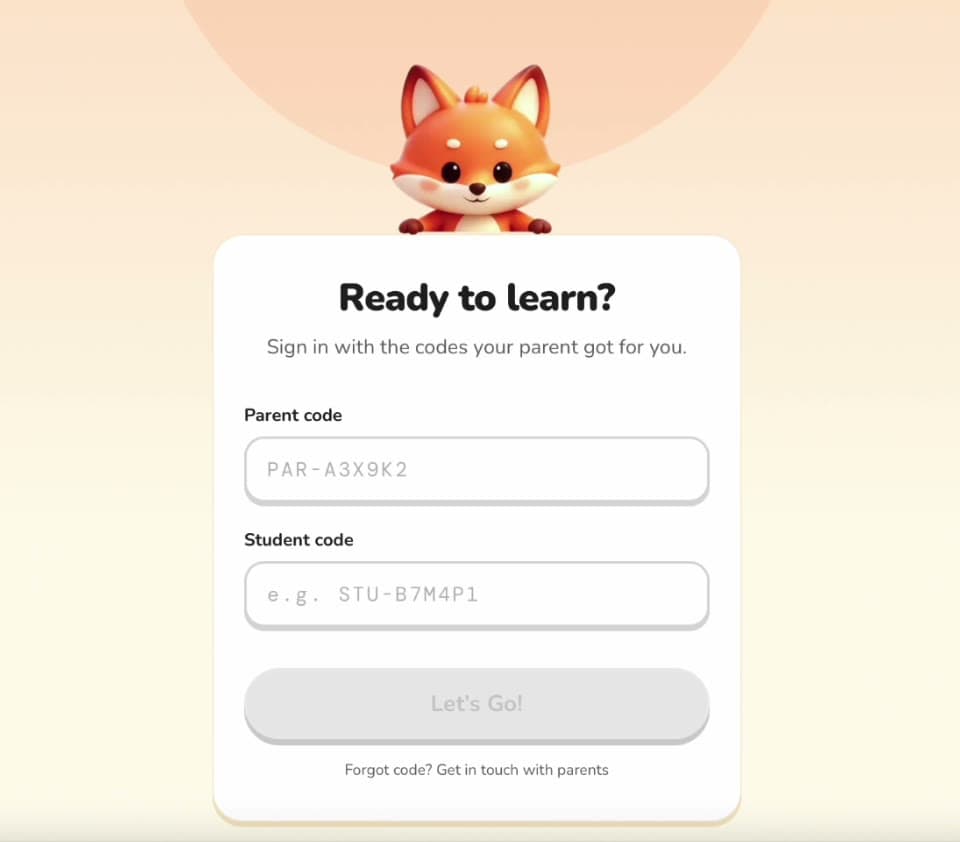
Sign in with your two codes
Open hubaoclub.com and tap Student in the top-right corner. Type in both codes, then press Let’s Go!
- Box 1: the Parent code (starts with PAR-)
- Box 2: the Student code (starts with STU-)
- Forgot a code? Ask your parent — it is in their Hubao Club account.
- 02
Step 2
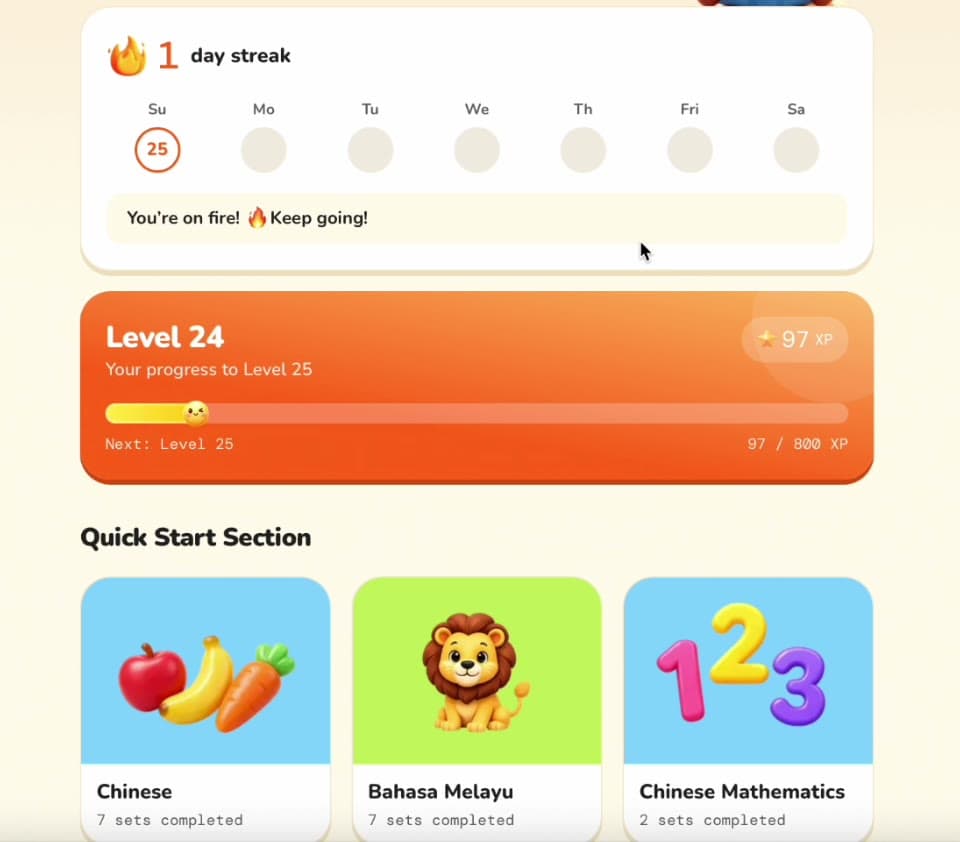
Meet your home screen
This is your base. See your day streak, your level and how far you are to the next one.
- The streak counts the days in a row you practise.
- The orange card shows your level and XP.
- Scroll down to Quick Start Section to jump into a subject.
- 03
Step 3
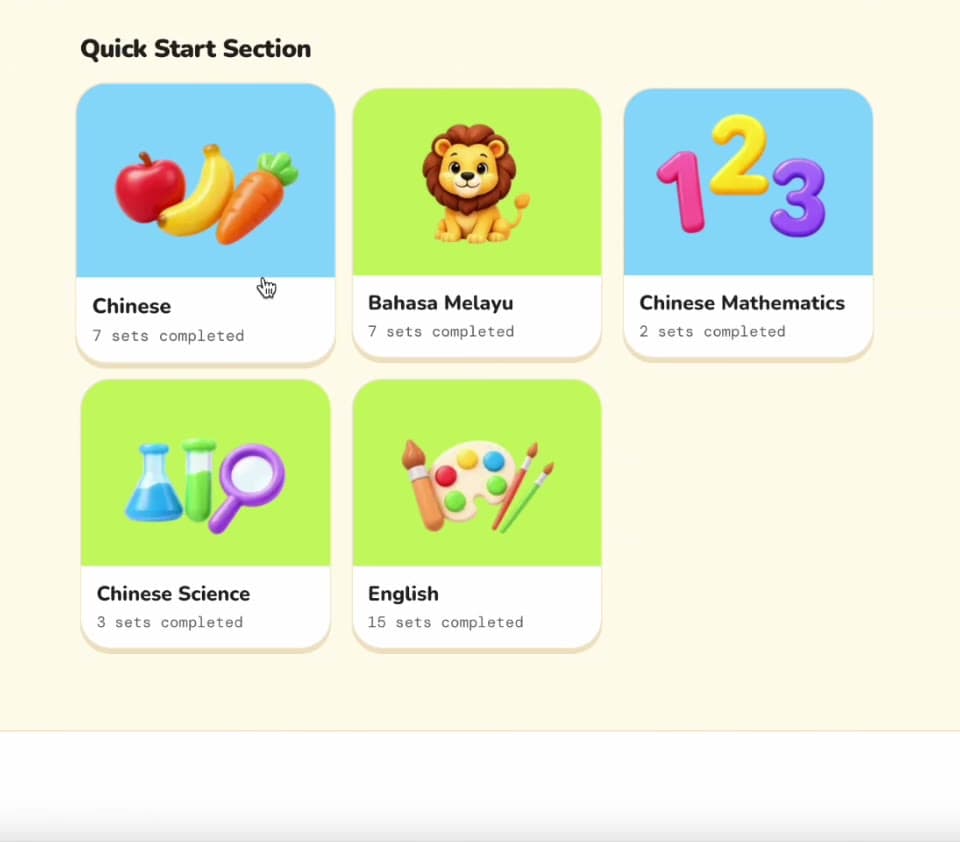
Choose a subject
Tap a subject card to begin. Each card shows how many sets you have finished.
Only the subjects your parent enrolled you in will appear.
- 04
Step 4
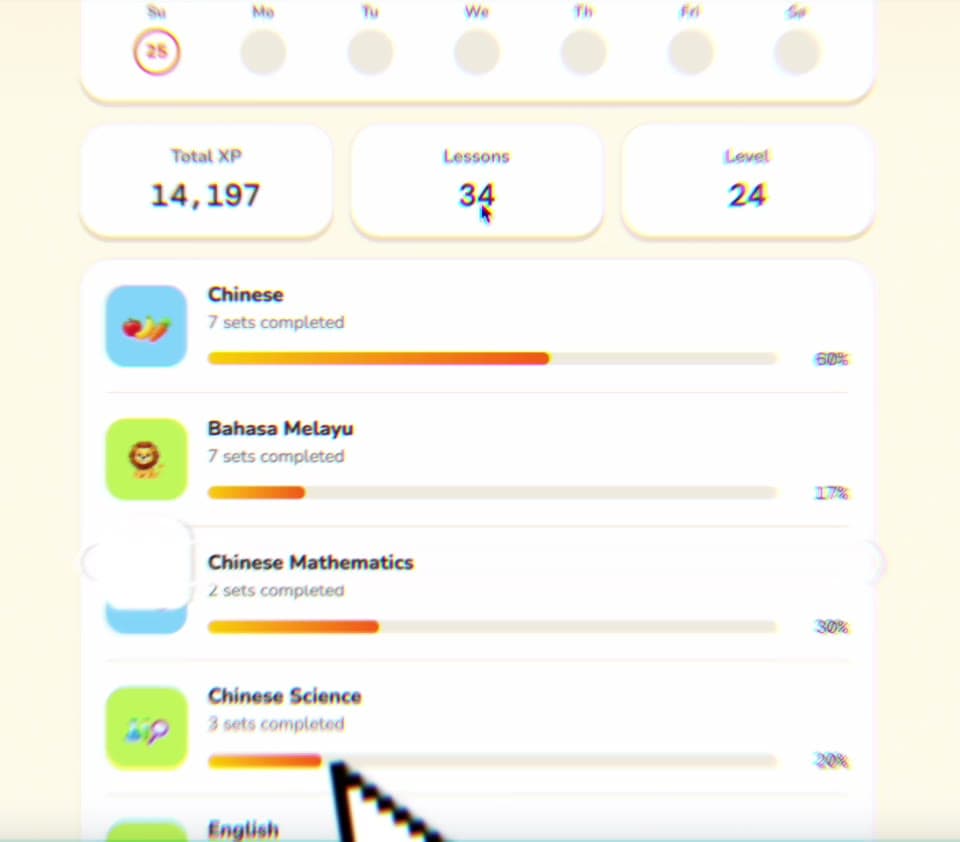
Check your profile
Use the Subjects / Profile switch at the top to see your total XP, lessons finished, level and progress in every subject.
- 05
Step 5
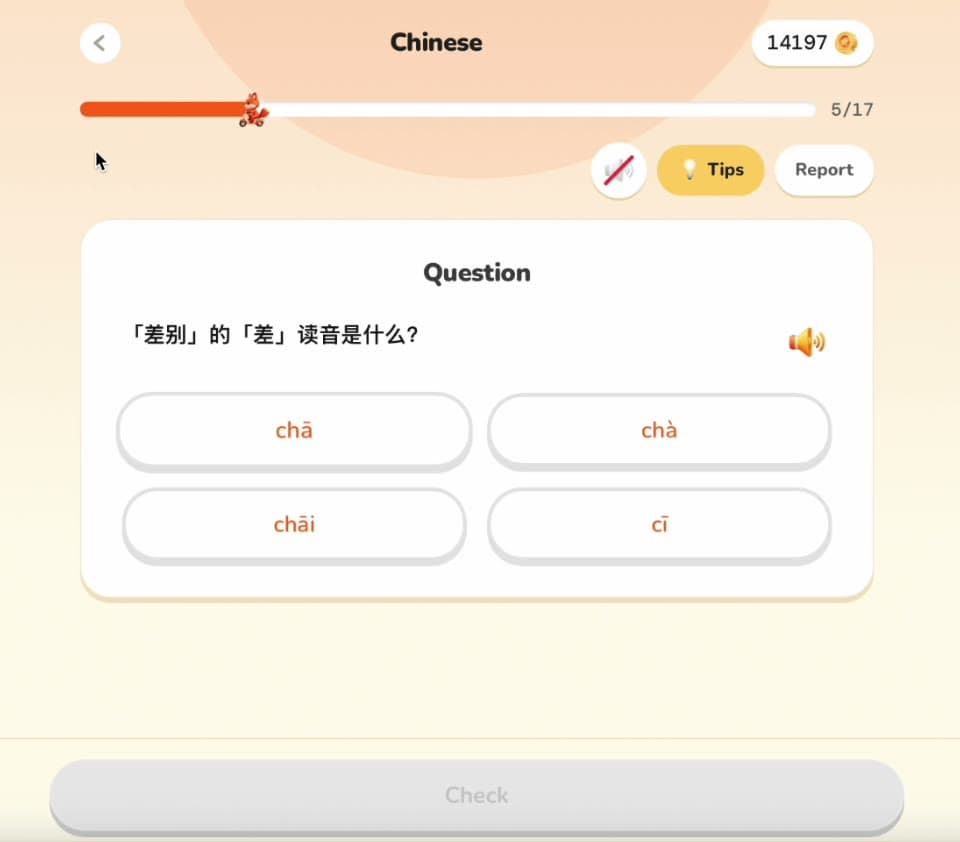
Start practising
A set has 10 questions. For multiple-choice questions, tap the answer you think is right in the choice area.
- The bar at the top shows how far through the set you are.
- Tap the speaker icon to hear the question read aloud.
- 06
Step 6
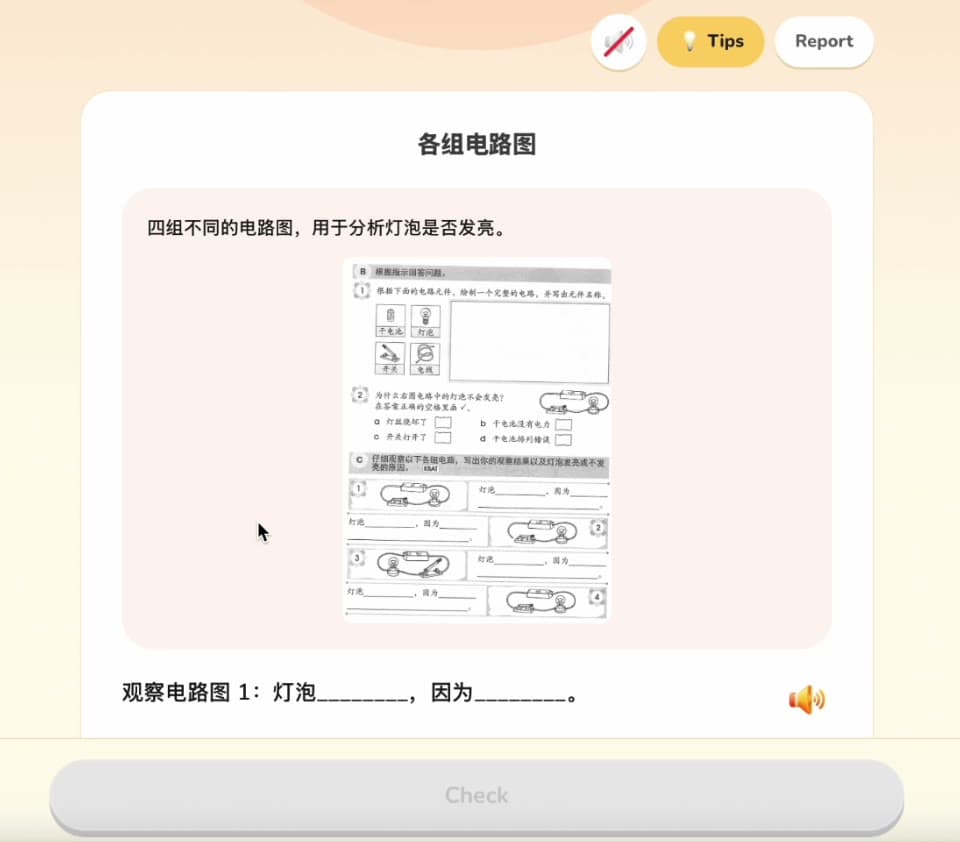
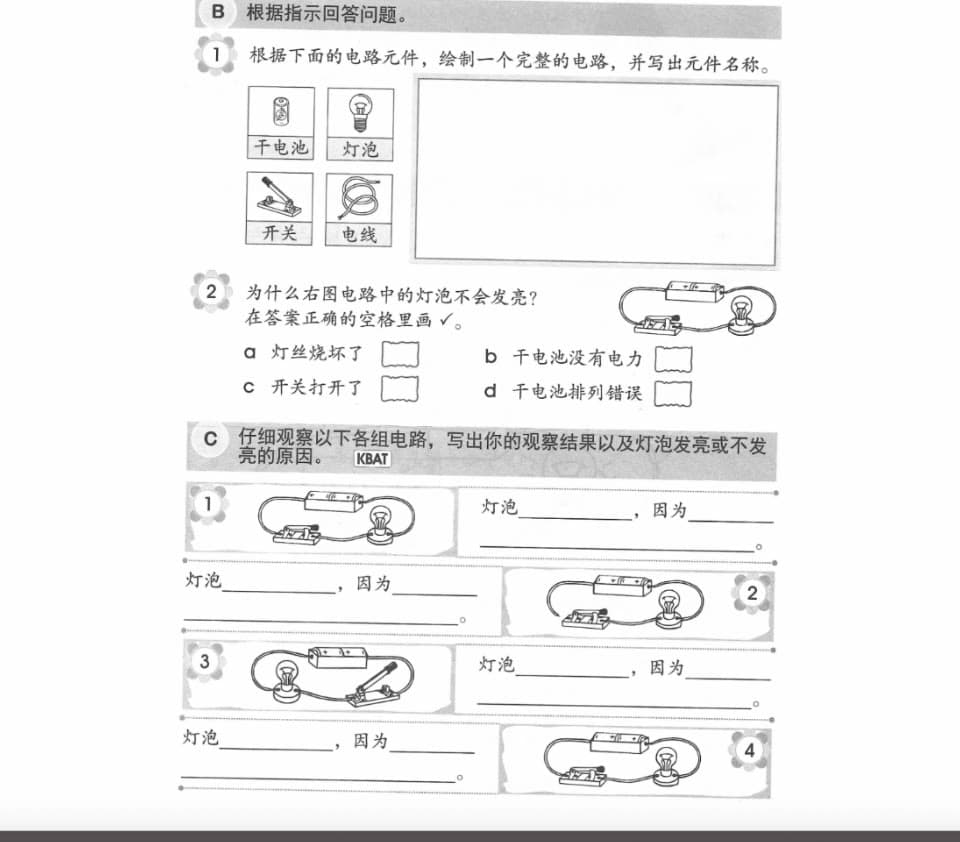
Read the question and picture
Some questions come with a picture. Read the question first, then look carefully at the picture. Can’t see it clearly? Tap the picture to enlarge it.
- 07
Step 7
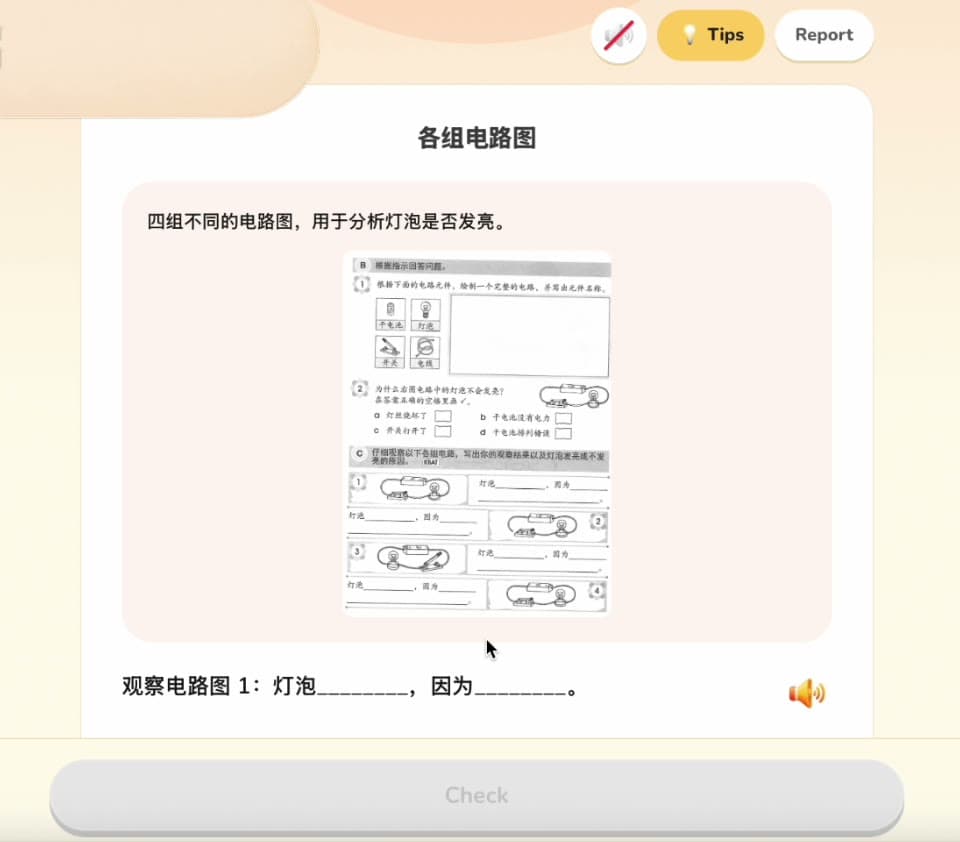
Stuck? Open Tips
Tap Tips at the top right to see a hint from the fox. Read it, then tap Got It to go back to the question.
- 08
Step 8
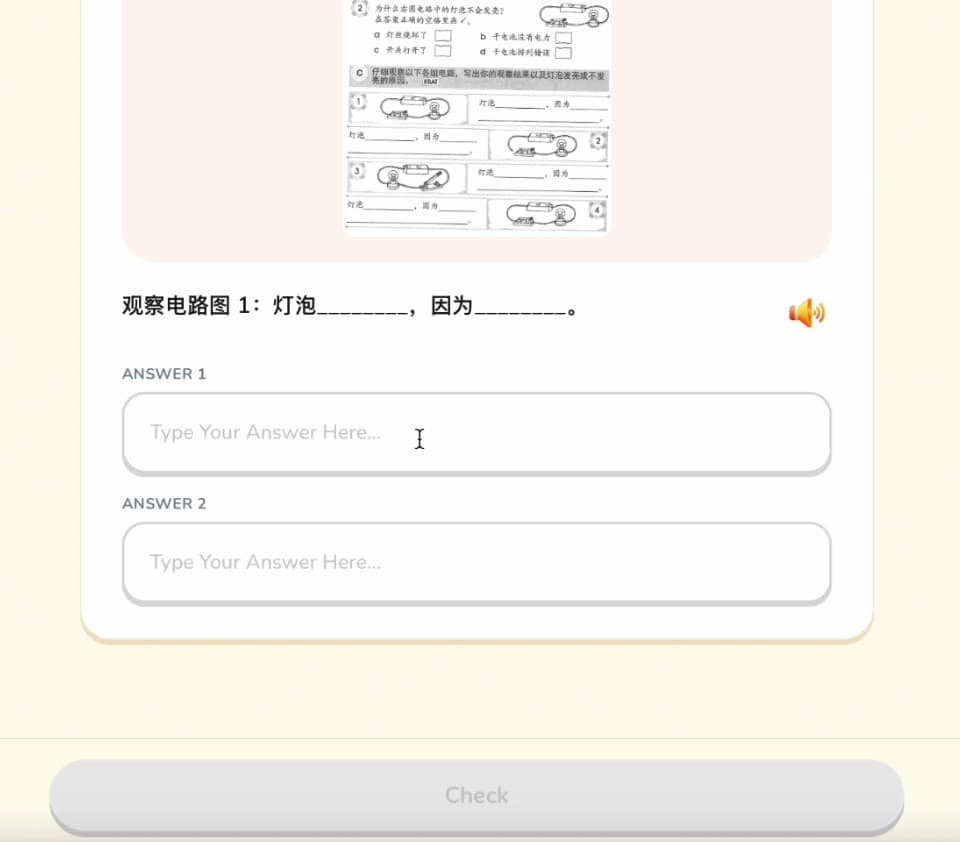
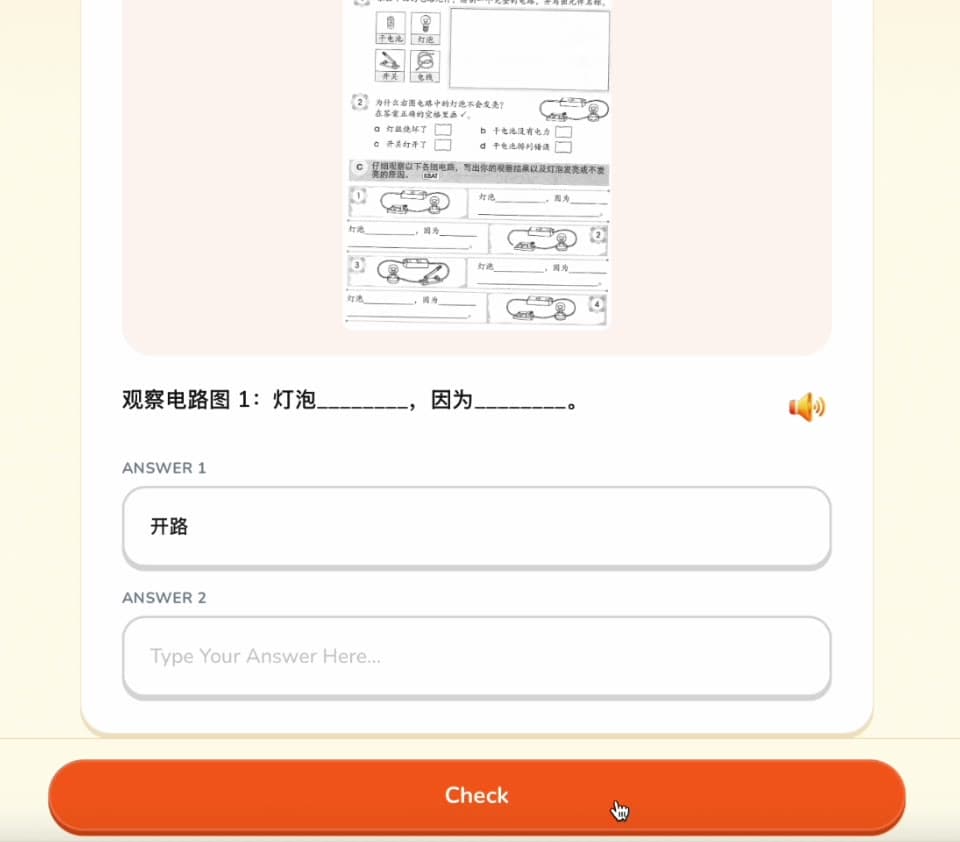
Type your answer and press Check
For written questions, tap the answer box and type. When you are ready, press the orange Check button.
- 09
Step 9
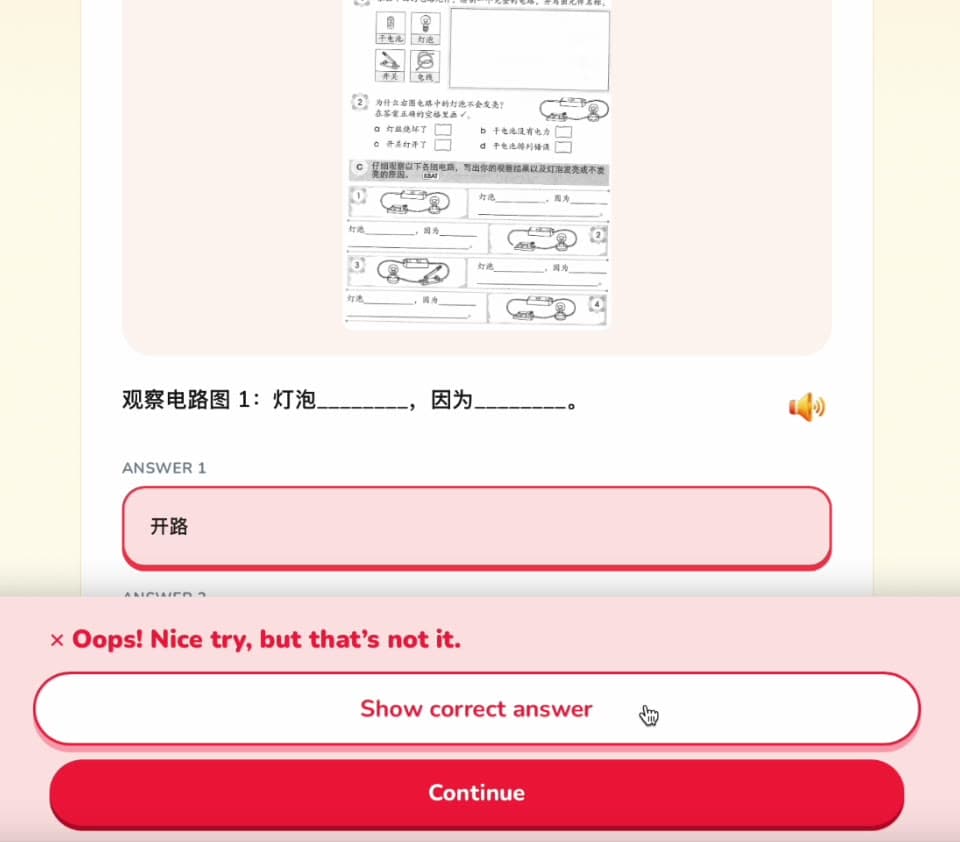
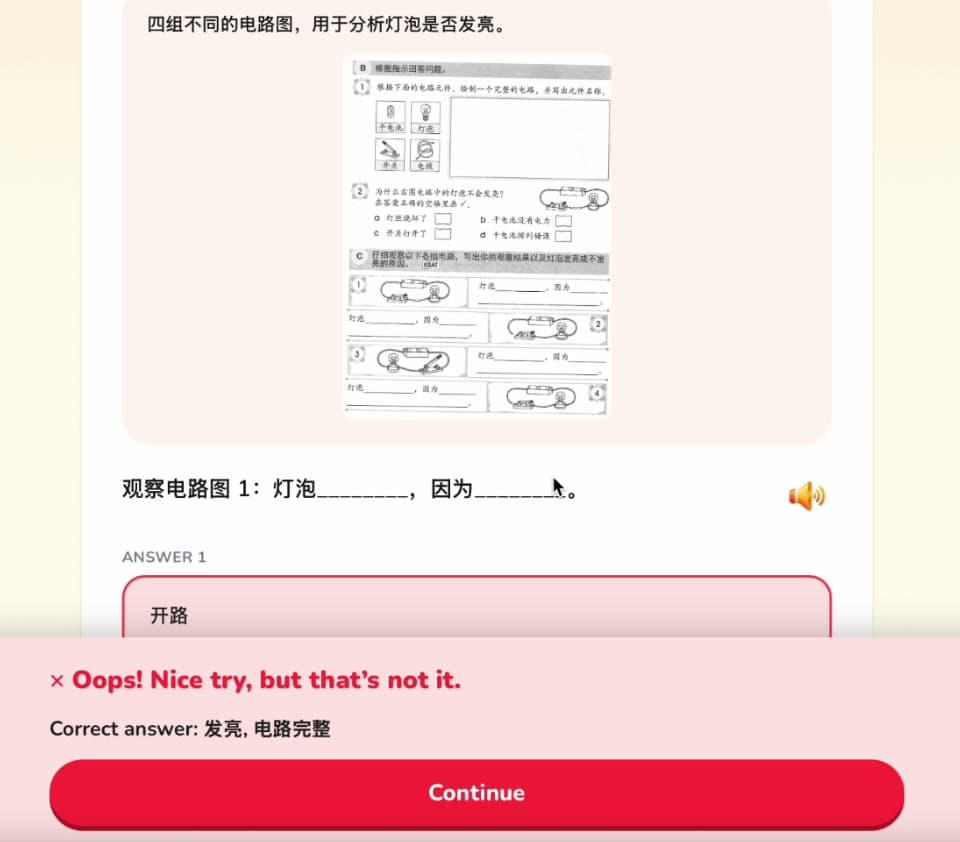
Wrong answers are okay
If an answer isn’t right, you will see a pink message. Tap Show correct answer to learn from it, then press Continue.
Understand why first, then try again. Mistakes are how you get better.
- 10
Step 10
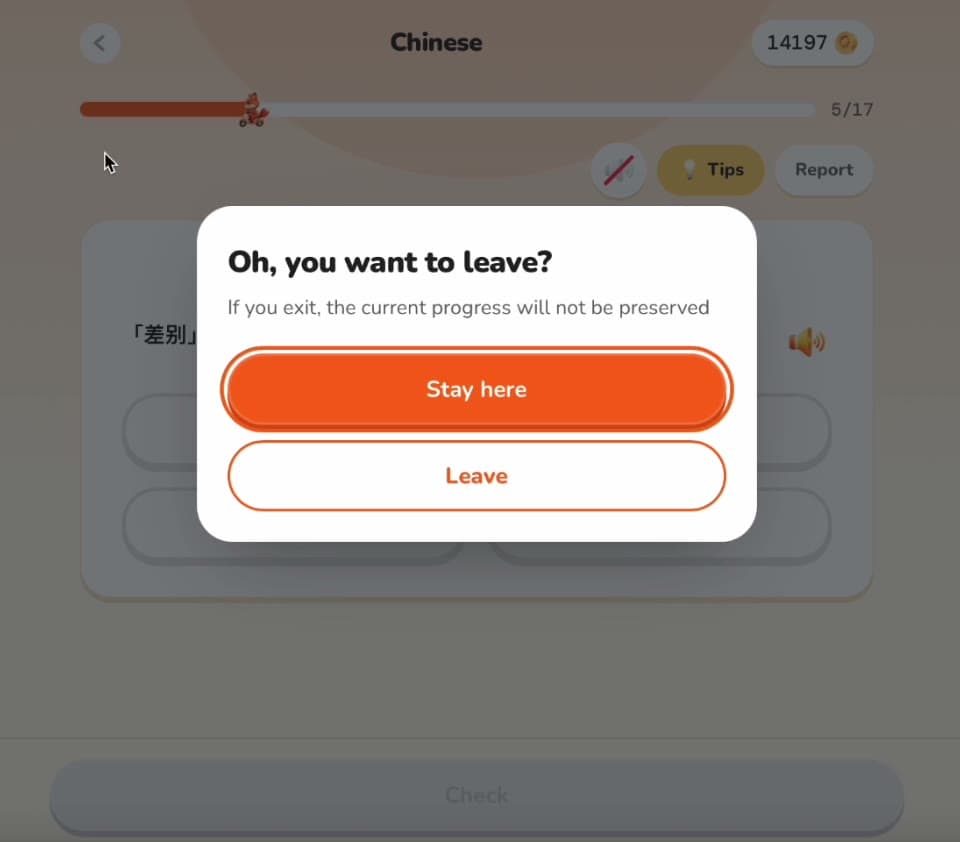
Leaving in the middle?
If you press back during a set, you will be asked to confirm. Stay here keeps you going. Leave exits, and the progress of that set will not be saved.
To unlock the next set, score more than 80% on the one you are on.
Ready? Let’s go!
That’s everything you need. Good luck, and have fun.
Open student sign-inStill stuck? Email [email protected]